Create and Print Shipping Labels
You can create UPS shipping labels for domestic and international shipments from the convenience of any device connected to the internet, then print your label at home or at The UPS Store.
How To Create a UPS Shipping Label Online
How to Reprint a Shipping Label
You can reprint a shipping label online by logging in to your UPS profile, making it easy to get another copy if your original label is lost or damaged.
- Select the View Shipping History app and log in.
- In the Shipment History window, choose the package or shipment that you need to reprint the label(s) for.
- On the Printing Activities tab, select labels and then the type of label that you want to print.
- If you’ve previously set up two or more label printers, you can select the printer you’d like to use from the Select Label Printer window that will appear.
Required Shipping Labels for Domestic Air
Your domestic shipments using air services require that you use a label created and printed from UPS.com or a UPS Air Shipping Document. The ASD combines your address label, tracking label and shipping record into one form.
Specific ASDs are available for:
- UPS Next Day Air® Early
- UPS Next Day Air (can be used for UPS Worldwide ExpressSM)
- UPS Next Day Air Saver
- UPS 2nd Day Air A.M.®
- UPS 2nd Day Air®
Log in to your UPS profile to order ASDs online on the UPS Supplies page. There you'll find detailed preparation instructions on the reverse side of each ASD to help you complete the form correctly.
UPS Ground Required Shipping Labels
Your UPS Ground shipments require that an address label containing "to" and "from" information is included inside and attached to the outside of your package. For guaranteed service, also attach a Ground tracking label.
Precise Tracking with Sensors and Scans
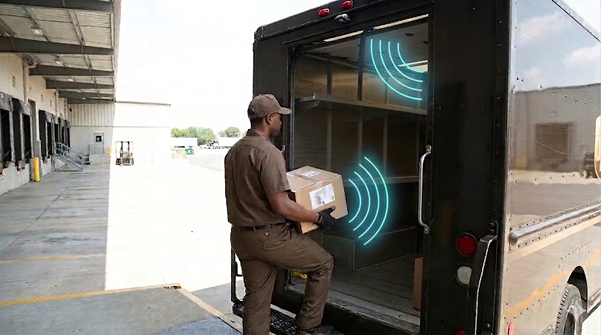
We’re adding RFID sensors to our network to give you more tracking details.
Additional Resources
How to Write a Shipping Address
See our guide to properly writing a shipping address so you can avoid unnecessary shipping delays, returns or extra fees.
UPS Thermal Printers
See our tips on how to use these special black and white printers so you can print your own shipping labels at home.
Desktop System and Browser Requirements for Creating Labels
To create a shipment on UPS.com, including UPS CampusShip™, please verify that your computer meets the following system requirements:
Desktop OSBrowser
- Desktop Browser
- Browser Version
- Windows 10
- Windows 8.1
- Windows 7
- Mac OS/X 10.12
- Mac OS/X 10.13
- IE
- 11
- IE
- 10
- MS Edge
- 41.x
- Firefox
- 59.x
- Chrome
- 64.x
- Safari
- 11.0
- Safari
- 11.0
Mobile System and Browser Requirements for Creating Labels
To create a shipment on UPS.com, please verify that your mobile device meets the following system requirements:
Mobile OSBrowser
- Mobile Browser
- Browser Version
- Android 6.X
- Android 7.X
- Android 8.X
- iOS 10.X
- iOS 11.X
- Safari
- 11.x
- Android
- OS Default
- Firefox
- 58.x
- Chrome
- 49.x
- Opera Mini
- 8.x
Browser Configurations
For the best experience creating UPS shipments and label, configure your browser to:
- Accept graphics
- Accept cookies
- Allow JavaScript
- Enable Secure Socket Layer (SSL) encryption technology
- Save encrypted pages to disk
- Disable pop-up killer software. UPS.com and UPS CampusShip use pop-up windows to display/print labels/receipts and for entering new addresses.
- If using Microsoft Internet Explorer, remove UPS.com from “Compatibility View” settings
Page Caching in Microsoft Internet Explorer
In addition, if you’re using Microsoft Internet Explorer, follow these steps to adjust your page caching:
- In the toolbar, select “Tools”
- Select “Internet Options”
- Under Browsing history select “Settings”
- Select “Every time I visit the webpage”
- Select “OK” then select “OK” again